
Microsoft Copilot in Project for the Web: June 2026 Update
**Preview:** Microsoft regularly pushes Copilot updates to Project for the Web — and your inbox flags each one as… Microsoft regularly pushes Copilot updates to Project for the Web — and your inbox flags each one as a feature announcement worth investigating. If you're like most PMs in an M365 envi
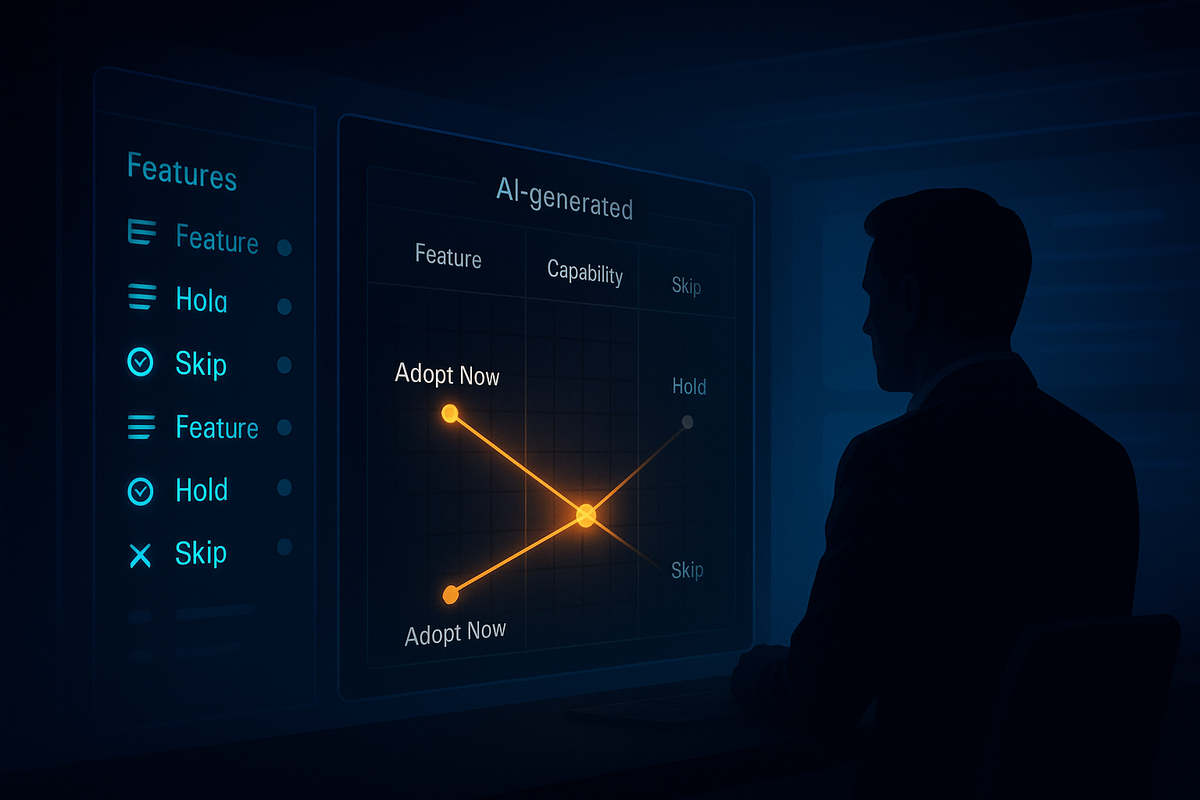
Microsoft regularly pushes Copilot updates to Project for the Web — and your inbox flags each one as a feature announcement worth investigating. If you're like most PMs in an M365 environment, you skim it, note that AI-assisted scheduling and risk flagging are now "available," and move on. That's often the right instinct. But when someone on your leadership team asks whether you're "using the new Copilot features," you need a real answer — not a demo talking point.
Here's what Copilot for Project has added in recent updates, what each feature does in practice, and whether any of it is worth changing how you work.
Verify before you roll out: Copilot features in Project for the Web release in waves across tenants and license types. Availability varies by your plan, tenant configuration, and region. Descriptions here reflect capabilities reported in Microsoft's release communications — confirm current availability in your environment before planning a team rollout.
What Copilot for Project Has Added in Recent Updates
Three substantive capabilities have landed under the Copilot umbrella. Lumping them together — which the announcements tend to do — is what causes confusion about what's actually ready.
AI-assisted scheduling lets Copilot suggest task sequencing and duration estimates based on your project's existing task list, resource assignments, and historical data from your tenant's completed projects.
Risk flagging is a Copilot prompt card that analyzes your current schedule for common risk patterns — overallocated resources, tasks with no slack on the critical path, and dependency chains that cross team boundaries. It generates a plain-language summary you can use in a status report.
Natural language task creation lets you type a plain-English description of a workstream and get a draft task breakdown returned as editable rows in your plan.
That's the list. Not a redesign. Three discrete capabilities at different levels of readiness.
Use Now / Wait / Skip: A Feature-by-Feature Rating
Risk Flagging — Use Now
The risk flagging output isn't magic. It's running pattern recognition against schedule data you already have but probably aren't reviewing systematically every week. The value is that it surfaces findings faster and formats them in a way you can hand to a stakeholder.
In practice, the summary reads like a concise schedule health check — identifying overallocated resources on the critical path, for example. (Illustrative example — not an actual Copilot output quote.) That's a sentence your sponsor can understand, and one that would take fifteen minutes to construct manually from a Gantt and resource histogram.
One limitation worth knowing: risk flagging operates only on schedule data inside Project for the Web. If your real risks live in a spreadsheet or someone's head, Copilot won't find them.
Use this now. Run it before your weekly status report.
AI-Assisted Scheduling — Wait
The demo version is more impressive than the production version.
Suggestions are contextually reasonable for simple projects — linear task sequences, a single team, clean dependencies. For anything with cross-functional dependencies or resource contention across projects, the suggestions become generic. The bigger issue: the feature pulls from historical project data in your tenant. If your organization has limited history of completed projects in Project for the Web — which applies to many enterprises that recently migrated from Project Online — suggestions won't be personalized to your environment.
There's also a governance question your PMO should answer before relying on AI-generated schedules: who owns the plan when Copilot built it?
Wait until your tenant has more historical data and your PMO has a position on AI-generated schedule artifacts.
Natural Language Task Creation — Skip (For Now)
The concept is right. The output quality isn't.
Task breakdowns tend to be high-level in some places and surprisingly granular in others, without consistent logic. Duration estimates look specific but aren't calibrated to your project. And because the output comes in as editable rows, it's tempting to clean it up rather than start fresh — which means inheriting a flawed structure.
The deeper issue: task creation isn't the hard part of planning. Knowing what tasks to include, in what order, with which dependencies, owned by which people — that's the hard part. Copilot doesn't help with that yet in a meaningful way.
Skip for production use. Junior PMs can experiment with it as a starting-point draft — with explicit direction to treat it as a rough outline requiring professional review.
The One Workflow Change You Should Make This Week
Run the risk flagging feature on your current active project before you write your next status report.
- Open your project in Project for the Web.
- Open the Copilot side panel (top-right of the grid view).
- Select the risk summary prompt or type: "Summarize schedule risks in this project."
- Read the output. Check whether it surfaces risks you already knew about — and any you hadn't explicitly flagged.
- Use the output as a first draft for your schedule health section. Edit it; don't paste verbatim.
This takes ten minutes. If it changes nothing about what you planned to write, you've lost ten minutes. If it surfaces one risk pattern you hadn't articulated, you've done your job better with less effort.
What the Announcements Don't Tell You
Microsoft's announcements don't distinguish between what Copilot can do with a mature data environment versus a sparse one. Risk flagging degrades if your project plans are incomplete — tasks without dates, resources without assignments, dependencies never formally linked.
Copilot works with whatever you give it. If your project data is messy, the output will be confidently wrong.
There's also a licensing question that some M365 admins haven't fully resolved: Copilot in Project for the Web requires the Copilot for Microsoft 365 license in addition to your Project Plan license. Confirm your seat includes it before troubleshooting why features aren't appearing.
The Honest Assessment
The risk flagging feature is genuinely useful right now. The other two are worth tracking but not restructuring your workflow around. The right answer to "are you using the new Copilot features?" is "yes, the risk flagging one — here's what it found last week." That's more credible than a blanket yes or no.
Subscribe free to AI for Project Managers at Indigo.pub — a monthly digest of what's actually shipping in AI tools for PMs, filtered down to what changes how you work and what doesn't. indigo.pub/#/portal/signup